Navigation: Using Visual Build > Panes >
Step Panes


|
Navigation: Using Visual Build > Panes > Step Panes |
|
By default, the Step Panes are docked in the upper half of the Visual Build window, with the following panes:
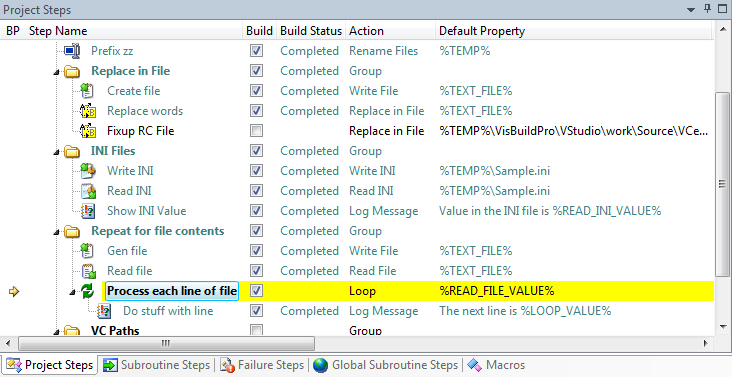
To switch between step panes, select the desired pane from the View menu, use the pane's shortcut key, or press the associated shortcut to cycle between panes. Panes can also be docked and customized in various ways.
Each pane displays a grid containing the information for that pane. Settings affecting how the grids are displayed can be configured in the related Options dialog. The columns can be resized by dragging the right edge of a column header. To hide a column, resize it so that it has no width, or right-click the column header to display a list of all columns to be shown or hidden. Columns can be rearranged by dragging and dropping the column headers as desired. The columns to be displayed on the step panes can also be configured in the associated options dialog. When the mouse cursor is held over a column (property), its expanded value will be shown in a tool tip.
Note: For actions whose default property is a filename or folder, right-click on the step and choose an item on the Shell to quickly open, explore, edit, or process the file or folder in a command prompt.