Navigation: Using Visual Build > Dialogs > Step Properties >
Step Properties Dialog General Tab


|
Navigation: Using Visual Build > Dialogs > Step Properties > Step Properties Dialog General Tab |
|
The General tab of the Step Properties dialog is used to configure common step properties.
Name: Used to identify the step when building (required).
Build Conditions
This section of the step properties dialog General tab is used to define the conditions for whether a step will be built or skipped during a build. This is a powerful capability that allows selective execution of project steps based on the value of a build profile, macros, script, or environment variables, implementing of loop constructs (performing a step or set of steps a certain number of times, until some condition is reached, once for each line in a file, etc.), and more.
Include in build: If checked, the step and its child steps will be considered for building, depending on the following settings. If unchecked, the step will not be included in the build.
Profile: Specifies the step's profile (optional). Only steps with an empty profile or a profile value matching the build profile will be included in the build. The step profile can be a literal string or a regular expression (for instance, Debug.* to match all build profiles beginning with Debug, .* to match all, or Staging|Production to match either the Staging or Production or build profile). A single asterisk (*) can also be used as a wildcard to match any profile value.
If the step is included and matches the build profile, a conditional build rule can also be defined to determine whether the step will be built.
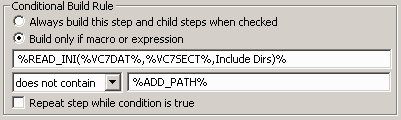
If Build this step and children when checked and profile matches is selected, no build rule will be evaluated. Select Build only if macro or expression to define a build rule for the step. Enter the expression to evaluate, the comparison to use, and the value to compare with. When building, Visual Build evaluates the rule, and builds the step and its children if the rule evaluates to a true condition and skips the step if it doesn't. The following rule comparisons are supported:
| Comparison | Behavior |
| is undefined | Builds the step if the macro (i.e., %MYMACRO%) does not exist |
| is defined | Builds the step if the macro is exists |
| contains | Build if the expression contains the string in the following field (macros and/or script can be used in either field) |
| is equal to | Build if the expression is equal to the string in the following field |
| is not equal to | Build if the expression is not equal to the string in the following field |
| does not contain | Build if the expression does not contain the string in the following field |
| is true | Build if the expression is true (a non-zero number or the string True) -- useful when evaluating script expressions |
| is false | Build if the expression is false (zero or the string False) |
Settings in the Application options determine whether comparisons are case sensitive.
Note: When entering a macro in the macro or expression field, the macro name must be surrounded by percent signs (%MYMACRO%) so that the macro's value is used in the comparison. Otherwise, a literal comparison of the string that was entered and the comparison value will be performed.
For more complex rules, a script expression can be used determine whether the step should be built. Any valid script expression can be used, and the expression can call functions defined in the Script Editor. Script expressions are marked by bracket characters: [script code here].
Repeating Rules
A while loop can be implemented by checking Repeat step while condition is true. If the rule evaluates true, the step and all child steps will be built; the rule will then be re-evaluated and the steps repeated until the rule evaluates false (a macro can be modified in a child step to increment a counter or set the condition to false as appropriate, or a script function could be called which determines whether to continue the loop). A repeating set of steps can also exited with the Exit action or by the step failure exit build/subroutine option.
Note: A loop can also be implemented with the Loop action.
Additional Details
Conditional building normally applies to the current step and all child steps (steps below and indented from the step), so a build rule can easily be applied to a block of steps. Normally, rules are nested (if a child step also defines a build rule, the parent and child step's rules must evaluate true).
Note: The Include in build setting, build profiles, and conditional build rules are not evaluated when performing a Rebuild Selected or when clicking the Test button on the step properties dialog; see the Methods of Building help topic for other ways to test iterating steps or steps with build rules.
Pause before and after building step: Specifies a delay (in seconds or fractions of a second [i.e., 0.25]) to pause before and/or after building the step (optional).