Navigation: Using Ultra Recall > Recalling Information > Searching >
Advanced Search


|
Navigation: Using Ultra Recall > Recalling Information > Searching > Advanced Search |
|
When a Quick Search isn't detailed enough to meet your needs, simply switch to the Advanced Search mode. This is done by clicking the Advanced button on the Search Criteria Editor. *
The image below shows a defined Advanced Search criteria (the default Most Popular Search Info Item):
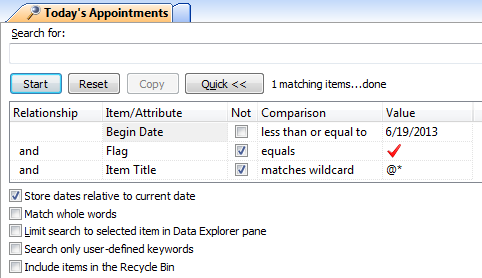
The above Advanced Search contains three Criteria Rows. It also demonstrates several advanced features, including Criteria Relationships, Indenting, and Relative Dates. An advanced search can be further filtered by entering text in the Search for field.
How to use an Advanced Search:
| • | Start: clicking the Start button will always start searching based on the specified criteria (or restart if a search is running). |
| • | Reset: The Reset button will stop the search (if running) and reset the search criteria. |
| • | Stop: A running search can be stopped by hitting ESC, the Stop button on the View Toolbar (or View submenu), or navigating to a different Info Item. |
| • | Save: The Copy button will create a new Saved Search from current search. |
| • | Demote to Quick Search: the Quick << button will convert your Advanced Search into a Quick Search. |
See Also: